

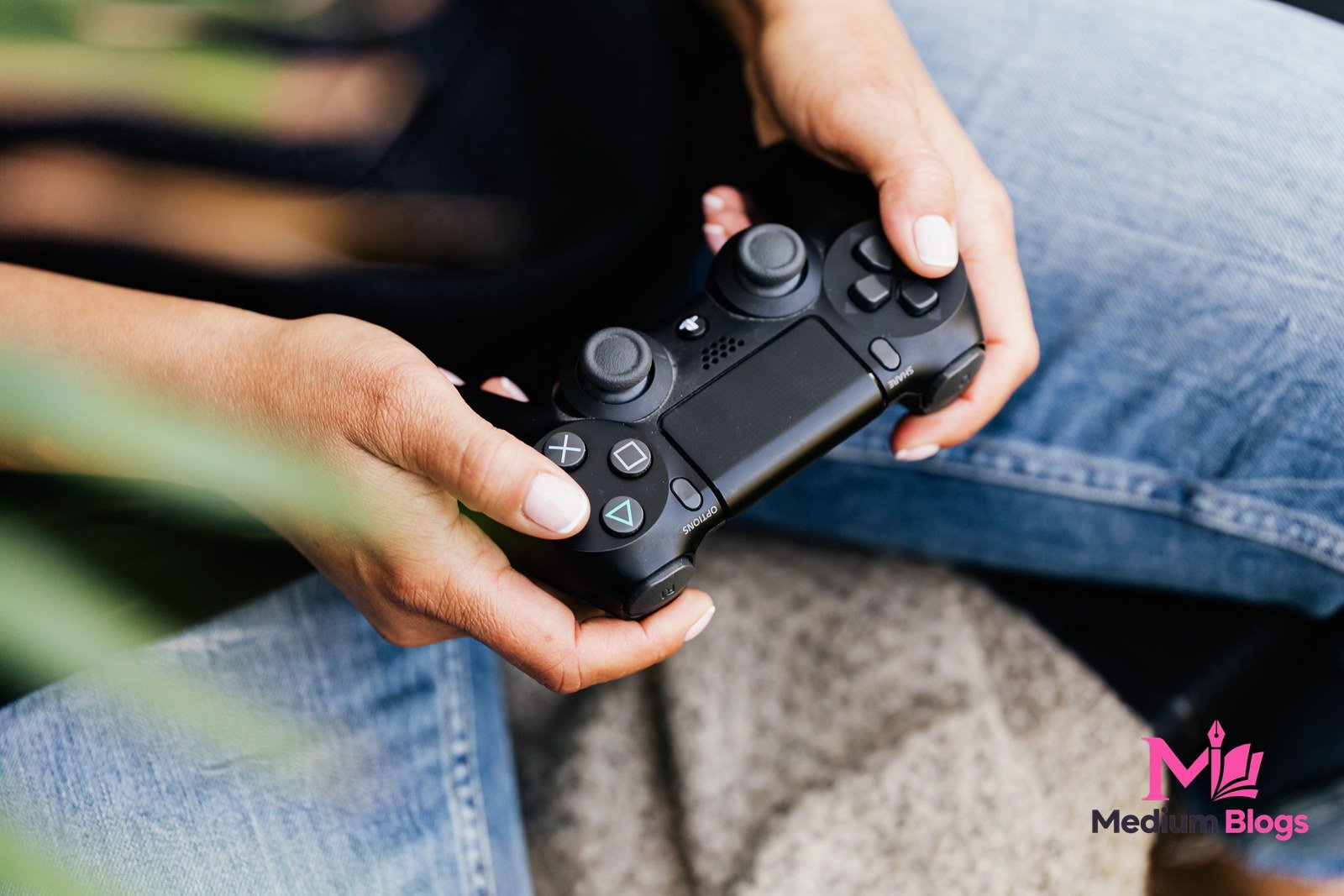
If you searched for how to use an Uggcontroman controller, you probably did what most gamers do: you opened your console settings, looked for a menu called Uggcontroman, and could not find it. Or you tried to buy the controller and found prices that made no sense. This guide starts with the truth, because that is the part every other guide skips, and then it gives you what you actually came for: real controller customization steps that work on the controller you already own.
Uggcontroman Controller How to Use: What You Actually Need
Here is the short version, and we will prove every part of it below. There is no Uggcontroman menu on Xbox, PlayStation, or PC. There is no verified Uggcontroman controller you can buy from a real store. And the features people are looking for, button remapping, sensitivity tuning, deadzone calibration, trigger stops, and per-game profiles, already exist on real controllers, with real apps and real menu paths. Once you know where to look, you can set all of it up in about twenty minutes.
First, the Honest Answer: There Is No Uggcontroman Menu on Your Console
Several ranking pages describe Uggcontroman as a hidden “Special Settings” menu inside your console or game, and some even print menu paths for it. We checked those paths. They do not exist. On Xbox there is no Uggcontroman option under controller settings. On PlayStation there is no Uggcontroman dropdown. On PC there is no Uggcontroman panel waiting in your system settings. One page ties the term to mobile games like Free Fire, BGMI, and Call of Duty, but it is not a real in-game setting in any of those titles either.
So if you looked for the menu and did not find it, nothing is wrong with your console, your controller, or your game. The menu simply is not there. This is also the answer to the question you will have next: there is no secret button combination that unlocks it, and no update that adds it. What follows in this guide is the honest replacement, the real settings that do the same jobs.
Is Uggcontroman a Real Controller You Can Buy?
The honest answer here is also no, at least not in any way you can verify. Some newer pages describe a physical pro controller, said to be made by a studio called UnderGrowthGames, with Hall-effect sticks, a 1000Hz polling rate, and a companion app. The problem is that none of it checks out:
- The prices contradict each other completely. Different pages put the same controller at $25-$50, $89-$109, and $199.99 up to $299.99. A real product has one price, or at least a narrow range.
- The site presented as the official one, uggcontroman.com, is not a shop at all. Its homepage has since been reworked into a long dedicated article, “Introduction to the UggControMan Ecosystem and the Vision of UnderGrowthGames,” with engineering and firmware sections, but it still has no shop, no buy button, no company details, and no support page, so it still sells nothing verifiable and names no company behind the product.
- There is no credible review or news coverage from any known hardware outlet, and no listing at any major retailer we could find. The “expert” quotes, “market reports,” user polls, and testimonials on these pages are all unsourced, and the people quoted cannot be verified.
- One page in the set is unusually candid: it says the term is not an official brand so much as a shorthand for a new breed of versatile controllers.
There is one more confusion worth clearing up. Some pages tie the name to “Empires of the Undergrowth.” That game is real: it is developed by Slug Disco Studios (UK) and published by Hooded Horse, with a full release on June 7, 2024, and it has nothing to do with any controller brand. “UndergrowthGames” surfaces separately as a media/platform covering indie games, not as a hardware studio. There is no evidence “UnderGrowthGames” is a hardware company at all, and the name appears borrowed from the game’s orbit. If a page uses that game to make the controller sound legitimate, that is a red flag, not proof.
None of this means controller customization is fake. It means the name is being used by low-quality SEO pages, and the real thing lives under other names. That is where the rest of this guide comes in.
New Claims, Same Missing Product
Since this article was first written, the cluster has grown new pages with more plausible-sounding claims: Bluetooth 5.3, USB-C wired play, laser-etched rubberized grips, 20 to 25 hour battery life, and a ‘Disruptor in the sub-$150 category’ 2025 market report. None of it comes with a buyable product, a credible review, or a company address. The test is unchanged: no store, no review, no company. The same pages also list three settings, sensitivity, acceleration, and dead zone, with recommended values such as sensitivity 5 to 10, acceleration 2 to 5, and dead zone 0 to 10. Real controller apps have sensitivity curves and deadzones, but no generic ‘acceleration’ slider, so treat any table of those exact values as invented, not measured.
Do Not Download “Uggcontroman” Software or Pay for “Full Guides”
Because this keyword has no verified product behind it, it is a magnet for the usual traps, and no competitor page warns you about them. So we will.
Do not download any “Uggcontroman” app, driver, or configuration tool from a lookalike site. A real controller brand ships its software from its own official site or app store page, with a company name, a support address, and a version history. A random download promising to unlock secret settings is a malware risk, not a shortcut. Do not pay for a “full guide” or a “pro settings pack” for a product that cannot be verified. Do not trust a phone number or a support chat that claims to represent this brand. There is no verified support channel to check it against. And if a site asks you to create an account and “sign up for Uggcontroman cloud profiles,” walk away: the one page that describes such a tool never links to any actual website behind it.
The safe rule is simple. If a controller feature can only be found on anonymous SEO pages and not on the manufacturer’s own site, treat it as fiction, and get the feature from a real product instead. That is exactly what the next sections show you how to do.
If You Already Downloaded or Paid: What to Do Now
If you already downloaded software or paid for something under this name, act in this order. Uninstall the software. Run a malware scan. Change the passwords for any accounts used on that machine. And dispute the charge with your payment provider. Do not install a second ‘fix’ from the same source.
What You Actually Wanted: Real Controller Customization That Works
Strip away the made-up name, and what searchers want is a short list of real things: connect and pair the controller, remap buttons, tune sensitivity and deadzones, shorten trigger travel, save a profile per game, and fix problems like drift and lag. Every one of those has a real answer on a real platform, and about twenty focused minutes is all it takes to set them up.
Uggcontroman Controller How to Use, Translated to a Real Controller
Think of it as a translation table. “Special settings” is the Xbox Accessories app on Xbox, the DualSense Edge settings on PlayStation, and Steam Input on PC. “Custom button mapping” is remapping in those same apps. “Sensitivity and deadzone tuning” is stick curves and deadzone sliders in those apps. “Trigger stops” are physical switches on pro controllers like the Xbox Elite Series 2 and DualSense Edge, plus trigger-range settings in software. “Profiles” are saved configurations you switch per game. Nothing is missing. It just has real names, and real menu paths you can follow.
Xbox: The Accessories App, Done Right
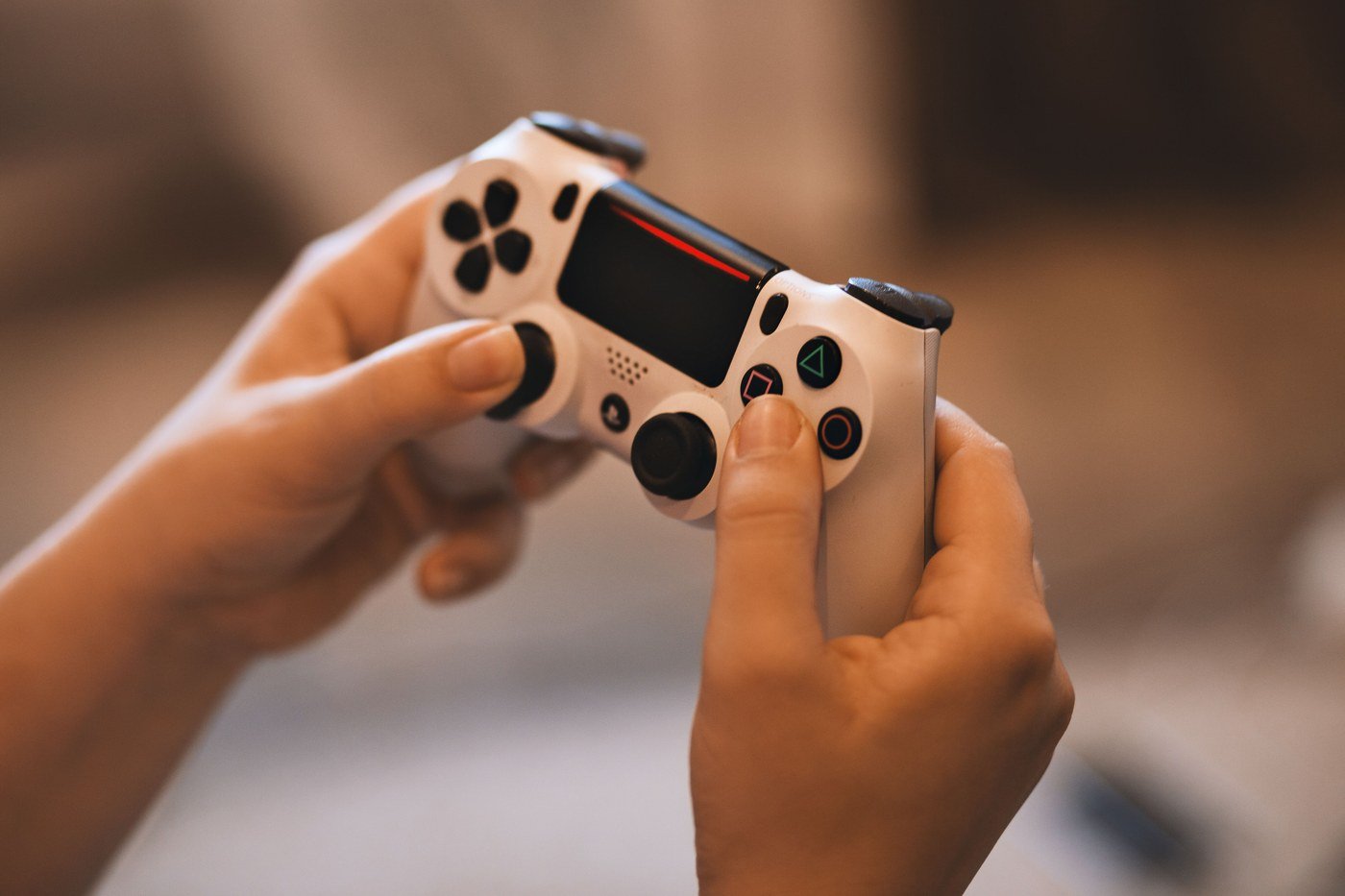
If you play on Xbox, the Xbox Accessories app is your control center, and it is free. Open it, select your controller, and choose Configure. From there you can remap every button, swap the sticks’ behavior, set stick sensitivity curves, and, on the Elite Series 2, set the physical trigger stops to short, medium, or full travel. Hair triggers, a very short pull to fire, are a real thing here: set the trigger stop to its shortest position and you will feel the difference in a shooter within one match.
Save your setup as a profile, and make more than one. A common setup that works well is one profile for shooters (shorter trigger travel, slightly higher sensitivity, small deadzone), one for racing (longer trigger travel for throttle control, wider trigger curve), and one for everything else. The app lets you switch profiles from the controller itself on Elite models, so you are not digging through menus between games.
Standard Controller vs Elite: What the App Can and Cannot Do
Full inner and outer deadzone and stick-curve settings are Elite Series 2 features. A standard Xbox Wireless Controller has no deadzone slider in the app, so those users must use in-game settings or Steam Input.
PlayStation: DualSense Edge Profiles
On PlayStation 5, the DualSense Edge is the controller built for this. Its settings live in Settings, then Accessories, then DualSense Edge Wireless Controller, where you can create custom profiles. Each profile can remap buttons, assign the two back buttons, adjust stick sensitivity and deadzones, and set trigger deadzones for the adaptive triggers. The controller also has replaceable stick modules, which matters for the drift section later in this guide.
A practical tip: name your profiles by game, not by number. “CoD,” “Racing,” and “Story” will save you from opening the wrong profile in a hurry. And if you use the Fn buttons, assign them to things you actually change mid-game, profile switching and volume, rather than actions you might hit by accident.
Even without an Edge, every PS5 owner can change vibration intensity and trigger effect intensity in the base PS5 settings. Those two sliders are worth trying before you buy anything.
PC: Steam Input Is the Closest Thing to “Special Settings”
On PC, Steam Input is the most powerful controller tool most players never fully open, and it is the closest real equivalent to the “special settings” idea. In Steam, go to Settings, then Controller, and enable Steam Input for your controller. Then, for any game, open its controller configuration and you can remap everything, set per-game profiles, calibrate deadzones, build action layers (for example, a different button layout while aiming down sights), and even add gyro aiming.
Steam Input also has the best deadzone calibration most players will ever need. If your stick drifts slightly, you can raise the deadzone just enough to cancel it, and you can see the live stick position while you do it. That is a real diagnostic, not a guess, and it is the tool to use before you decide a controller is broken.
Nintendo Switch: Button Mapping Without Extra Software
The platform sections of this article cover Xbox, PlayStation, PC, and mobile, but Switch owners were missing. Switch system settings allow button remapping without extra software: from the HOME Menu, open System Settings, then Controllers and Sensors, then Change Button Mapping, and select your controller. Try that before buying any third-party tool.
8BitDo, SCUF, and Other Real Pro Controllers
If you do want to buy a controller built for customization, buy one you can verify. 8BitDo’s Ultimate line, for example, ships with its own Ultimate Software for remapping, stick curves, and trigger settings, and it is sold through real retailers with real reviews. SCUF controllers offer remappable back paddles and trigger stops, again through a real store with a real warranty. The Xbox Elite Series 2 and DualSense Edge are the first-party versions of the same idea.
When you compare any pro controller, check five things before you pay: Hall-effect sticks or a clear drift policy, a wired low-latency option alongside wireless, on-device profile storage or a real companion app, replaceable parts, and a warranty you can actually claim. That checklist, borrowed from the one honest page in this keyword’s search results, will protect you far better than any “secret settings” guide.
Sensitivity, Deadzones, and Trigger Stops: Starting Values That Work
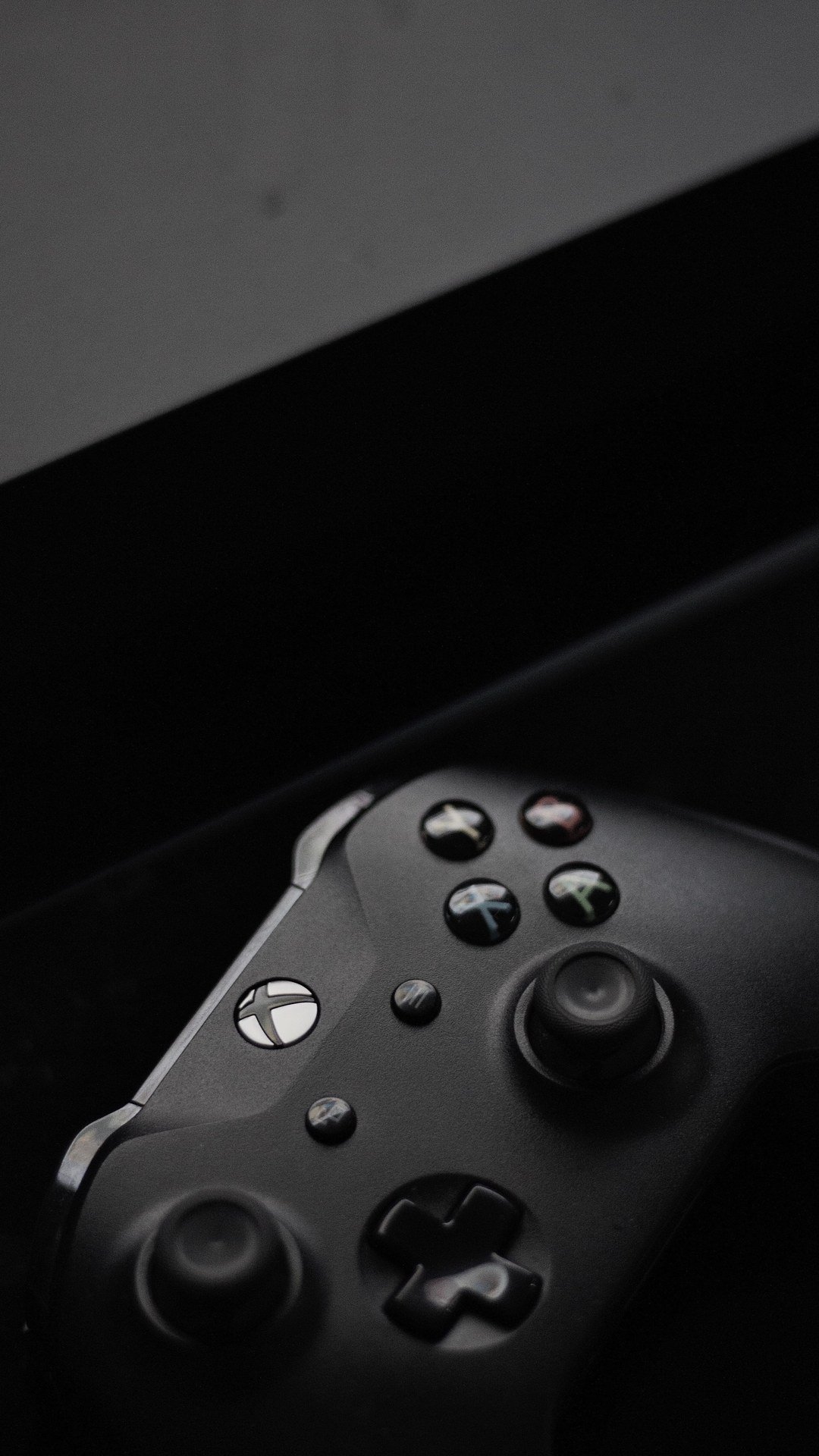
Every guide in this keyword’s search results says “use high sensitivity for shooters” and stops there. That advice is useless without numbers, so here are starting values you can actually test. For shooters, start with a deadzone of 5 to 8 percent, a linear or slightly exponential sensitivity curve, and short trigger travel if your controller supports trigger stops. Play a few rounds in an aim trainer or a low-stakes match, then adjust the deadzone by 2 percent at a time. If your aim feels twitchy and overshoots, your deadzone is too small or your sensitivity is too high. If your aim feels sluggish and late, the opposite is true. Change one thing at a time, or you will never know which change helped.
For racing games, do the reverse: a wider trigger curve and longer trigger travel, so you can feather the throttle instead of flooring it. For fighting games, a clicky D-pad matters more than sensitivity, and short, consistent button travel matters more than anything. For story-driven games, leave everything near default.
Two numbers are worth understanding. Polling rate, 250Hz, 500Hz, or 1000Hz on some controllers, is how often the controller reports its position to the console or PC. Higher is technically faster: 500Hz means one report every 2ms and 1000Hz means one every 1ms, so the difference is only 1ms (250Hz is 4ms), and your display and your own reaction time matter far more. And connection type matters more than polling rate: wired is the lowest latency, a 2.4GHz dongle is close behind, and Bluetooth is the most convenient but usually the slowest of the three. If you play competitively, use wired or the dongle. If you play casually on the couch, Bluetooth is fine.
Stick Drift: Test It, Calibrate It, Know When to Replace It
Stick drift is the one hardware problem every controller owner will meet, and it is barely covered by the pages ranking for this keyword. Drift happens when a stick reports movement you did not make. The cause depends on the sensor. Most standard controllers use potentiometers, which are physical contacts that wear down over time. That wear is what causes drift. Hall-effect sticks use magnets instead of contact, so they do not wear the same way, which is why they are marketed as drift-resistant.
To test for drift, open your platform’s controller settings and watch the live stick position. If the dot moves while you are not touching the stick, that is drift. The first fix is calibration: raise the deadzone slightly in your controller app until the idle position reads as zero. The second fix is cleaning around the stick base, since dust and debris can cause sticking that looks like drift. The third fix is a stick module replacement, which is easy on controllers built for it, like the DualSense Edge. If none of those work and the controller is out of warranty, replacing the controller is usually cheaper than repairing a worn potentiometer.
Recalibrate First: The Xbox Accessories Recalibration Tool
Microsoft added a dedicated stick recalibration tool to the Xbox Accessories app in late 2024. Connect by USB, open the ‘…’ menu under the controller, select Recalibration Tool, and follow the prompts to write a new center point to firmware. Try this before you replace a drifting controller.
Store your controller sensibly, too: keep it at a moderate charge if you will not use it for weeks, and avoid leaving it in a hot car. Recalibrate every few months.
Macros and Tournament Rules: What Can Get You Banned
Macros, one button press that performs a sequence of actions, are the one customization feature you should treat with caution. In casual play they are usually harmless, but in ranked and competitive play, macros and rapid-fire modifications are banned in many games and tournaments, and using them can get an account suspended or a team disqualified. The rules differ by game and by tournament, so check the rules of the game you actually play rather than trusting a generic guide.
The safe version of this feature is remapping, not automation. Remapping moves an existing action to a more convenient button. A macro performs several actions for you. The first is legal almost everywhere. The second is where the trouble starts. If a controller or a guide promises “one-button combos” for ranked play, that is a warning sign, not a selling point.
Mobile Controllers: Free Fire, BGMI, and CoD Mobile
One competitor page claims this keyword is about mobile games, then gives no mobile steps at all. Here are the real ones. On Android and iOS, pair a Bluetooth controller in your phone’s Bluetooth settings first, then open the game and look for its controller settings. Call of Duty Mobile officially supports controllers, but Free Fire and BGMI do not officially support controllers, and players resort to third-party mapping tools, which can carry ban risk, so check each game’s own settings menu rather than expecting one universal layout.
Two practical tips. First, use a phone clip or a controller with a built-in mount, because holding a phone and a controller separately is awkward and slow. Second, give yourself a few days to transition: if you have played on touch controls for months, your muscle memory will fight you at first, and that is normal. Start with casual matches before ranked ones. And remember the earlier warning: there is no Uggcontroman setting inside these games. If a video or a page tells you to enable one, it is not real.
Accessibility: One-Handed Layouts and the Real Accessibility Answer
Controller customization matters most for players who need it, and this is another area the ranking pages barely touch. If you play one-handed, remap the essential actions, movement, aiming, shooting, and jumping, to buttons you can reach comfortably, and use stick inversion or adjusted curves if they help. If you need a controller built for accessibility from the ground up, the Xbox Adaptive Controller is the real answer: it is a first-party Microsoft product with large programmable buttons and ports for external switches, joysticks, and mounts, and it is sold and supported through real channels.
Accessibility is not a niche feature. It is the reason remapping exists, and any guide about controller settings that skips it is missing the point.
How to Vet Any Controller Brand Before You Buy
Use this article’s lesson as a reusable checklist. Search the brand name plus ‘scam’ and ‘malware’ and read what comes up. Check whether any known hardware outlet has reviewed it. And reverse-image-search the product photos, because SEO clusters reuse renders. A brand that fails all three checks has not earned your money, whatever its pages claim.
Troubleshooting: Pairing Failures, Firmware Updates, and Input Lag
Most controller problems fall into four buckets, and each has a simple diagnostic order.
Pairing failures come first. If a controller will not pair, charge it fully, forget the device in your console or phone’s Bluetooth settings, restart both devices, and pair again. If it pairs but drops out, move closer, remove other Bluetooth devices from the area, and switch to wired or a 2.4GHz dongle to test whether wireless interference is the cause.
Firmware update failures come second. If an update stalls, do not unplug the controller mid-update. Close the app, reconnect the controller by wire, and retry. A wired connection is far more reliable for firmware than Bluetooth, and most failed updates recover cleanly on the second attempt.
Input lag comes third, and it is usually not the controller. Check your display’s game mode first, then your game’s frame rate, then your connection type, wired, dongle, Bluetooth, in that order. If the game is running at a low frame rate, no controller setting will fix the sluggish feeling.
Drift and calibration come fourth, and they are covered in the drift section above: test with the live stick display, raise the deadzone slightly, clean, replace the module if your controller supports it, and replace the controller if it does not.
If you work through those four in order, you will solve the large majority of controller problems without buying anything new.
Frequently Asked Questions
What is Uggcontroman?
Uggcontroman is a term that appears on a cluster of low-quality SEO pages, described either as a hidden controller setting or as a pro controller made by a studio called UnderGrowthGames. Neither version can be verified: the menu does not exist on any real console, and the product has no verified store, review, or company behind it.
Is Uggcontroman a real controller or a real setting?
No. There is no verified Uggcontroman controller for sale and no Uggcontroman setting on Xbox, PlayStation, or PC. The features people associate with the name, remapping, sensitivity tuning, deadzones, trigger stops, and profiles, are real, but they live in real apps like the Xbox Accessories app, DualSense Edge settings, and Steam Input.
Where can I find Uggcontroman settings on my console or PC?
You cannot, because they do not exist. On Xbox, open the Xbox Accessories app. On PlayStation 5 with a DualSense Edge, go to Settings, then Accessories, then DualSense Edge Wireless Controller. On PC, use Steam Input in Steam’s controller settings. Those are the real equivalents.
How do I use the Uggcontroman controller?
Since there is no verified Uggcontroman controller, there is no official setup process. If you own a real controller, connect it by wire or Bluetooth, open the right app for your platform (Xbox Accessories, DualSense Edge settings, or Steam Input), and follow the setup steps in this guide: remap, tune sensitivity and deadzones, set trigger stops if your controller has them, and save a profile per game.
Where can I buy the Uggcontroman controller, and how much does it cost?
There is no verified seller and no trustworthy price. Pages ranking for this keyword quote prices from $25 to $299.99 for the same supposed product, and the site presented as official is a generic blog with no shop. If you want a customizable controller, buy a verifiable one, Xbox Elite Series 2, DualSense Edge, 8BitDo Ultimate, or SCUF, from a real retailer.
Is Uggcontroman compatible with Xbox, PlayStation, and PC?
The term itself is not a product, so compatibility does not apply. Real pro controllers are usually cross-platform to a degree, but always check the manufacturer’s own compatibility page before buying, not an SEO page’s claim.
What is the best sensitivity and deadzone setting for FPS games?
Start with a deadzone of 5 to 8 percent, a linear or slightly exponential sensitivity curve, and short trigger travel if your controller supports trigger stops. Test in an aim trainer or casual matches, and adjust the deadzone by 2 percent at a time. Change one setting at a time so you know what helped.
Can I save multiple controller profiles for different games?
Yes, on real controllers. The Xbox Accessories app, DualSense Edge settings, and Steam Input all support multiple saved profiles. Name them by game rather than by number, and keep one profile for shooters, one for racing, and one for everything else as a starting point.
Can controller settings get me banned in competitive games?
Remapping buttons is legal almost everywhere. Macros and rapid-fire modifications, one press performing several actions for you, are banned in many games and tournaments and can get an account suspended or a team disqualified. Check the rules of the game you play before using any automation feature.
What do I do if I can’t find Uggcontroman on my controller?
Nothing is wrong with your controller. The menu does not exist, so stop looking for it and use the real settings instead: Xbox Accessories on Xbox, DualSense Edge settings on PlayStation, and Steam Input on PC. This guide’s platform sections walk you through each one.
How do I fix stick drift?
First test it: open your platform’s controller settings and watch the live stick position. If the dot moves untouched, that is drift. Raise the deadzone slightly to cancel it, clean around the stick base, and replace the stick module if your controller supports it. If the controller uses worn potentiometers and is out of warranty, replacement is usually cheaper than repair.
Is Uggcontroman safe to download?
Do not download any “Uggcontroman” software. There is no verified developer, no official site, and no support channel behind the name, so a download promising to unlock secret settings is a malware risk. Get controller software only from the manufacturer’s own site or app store page.
Is Uggcontroman on Amazon?
No verified listing was found on Amazon or any other major retailer. No retailer listing, no known-outlet review, and no company record for an ‘UnderGrowthGames’ hardware studio surfaced in search.
What is UnderGrowthGames?
The name surfaces as a media/platform covering indie games, not as a hardware studio. There is no evidence it is a hardware company, and the name appears borrowed from the orbit of the game Empires of the Undergrowth.
Does Uggcontroman work with Free Fire?
There is no verified Uggcontroman product to test, and Free Fire does not officially support controllers. Players who use third-party mapping tools risk a ban, so do not trust any page promising official Free Fire settings for this name.
What should I do if I already downloaded Uggcontroman software?
Uninstall the software, run a malware scan, change the passwords for any accounts used on that machine, and dispute any charge with your payment provider.
Final Thoughts
The internet is full of guides that will tell you exactly what you want to hear about a secret setting or a miracle controller. The honest guide is the one that tells you when the thing you searched for does not exist, and then hands you something better. Real controller customization is not hidden, it is not secret, and it does not require a made-up name. It is in the apps your console and PC already provide, and it works on controllers you can actually buy.
Start with one profile for the game you play most. Tune one setting at a time. And the next time a guide promises you a secret menu, check whether the menu exists before you trust anything else on the page.
More from Medium Blogs: read our FPMomTips parental guide for a different kind of practical guide, and for another SEO-invented keyword cluster examined the same way, read our Magvistanow Com article. Explore the rest of the site from the Medium Blogs homepage. If you have a question or a topic you would like us to cover honestly, visit our About Us and Contact Us pages.

Aliza Blogger writes for Medium Blogs, where she covers business, lifestyle, tech, food, games, travel, celebrities and net worth in clear and simple words. Her work focuses on honest, well researched stories. Every figure is checked, every estimate is labeled, and every pairing is tested before it is written about. No hype, just clear facts and full detail.